OKRs are the definitive goal-setting and strategy-execution framework — however, they are not enough. You can have the most amazing goals in the world, but if your day-to-day work is not built around them, you will never achieve your goals.
By integrating your OKRs in Jira, teams can bridge the gap between strategy and execution. Jira Issues, Epics, and Sprints can be connected to the goals they support, while KPIs and custom metrics track whether that work is producing the intended business results. After all, completing an Epic does not necessarily mean the Objective has been achieved if adoption, revenue, retention, uptime, or another key outcome remains below target.
However, transforming your entire business operations like this can be a tall order. So, in this article, we will cover why you should use Jira to manage OKRs and how to implement OKRs in Jira.

Why Manage Jira OKRs Instead of Spreadsheets
Jira is a popular project management platform built by Atlassian and built on Agile principles. It offers features such as setting priorities, attaching files, and integrating with other software tools, making it easier to manage complex projects. It also provides reporting tools to help teams evaluate their performance and make data-driven decisions.
OKR in Jira (formerly OKR Board for Jira) by Oboard is a strategy management platform designed to seamlessly integrate OKRs into Jira, serve as a strategic layer, and bridge goal-setting and execution. It is the most popular Jira OKR management software on the Atlassian Marketplace, used by 3,000+ customers from 50 countries and over 10,000 monthly active users.
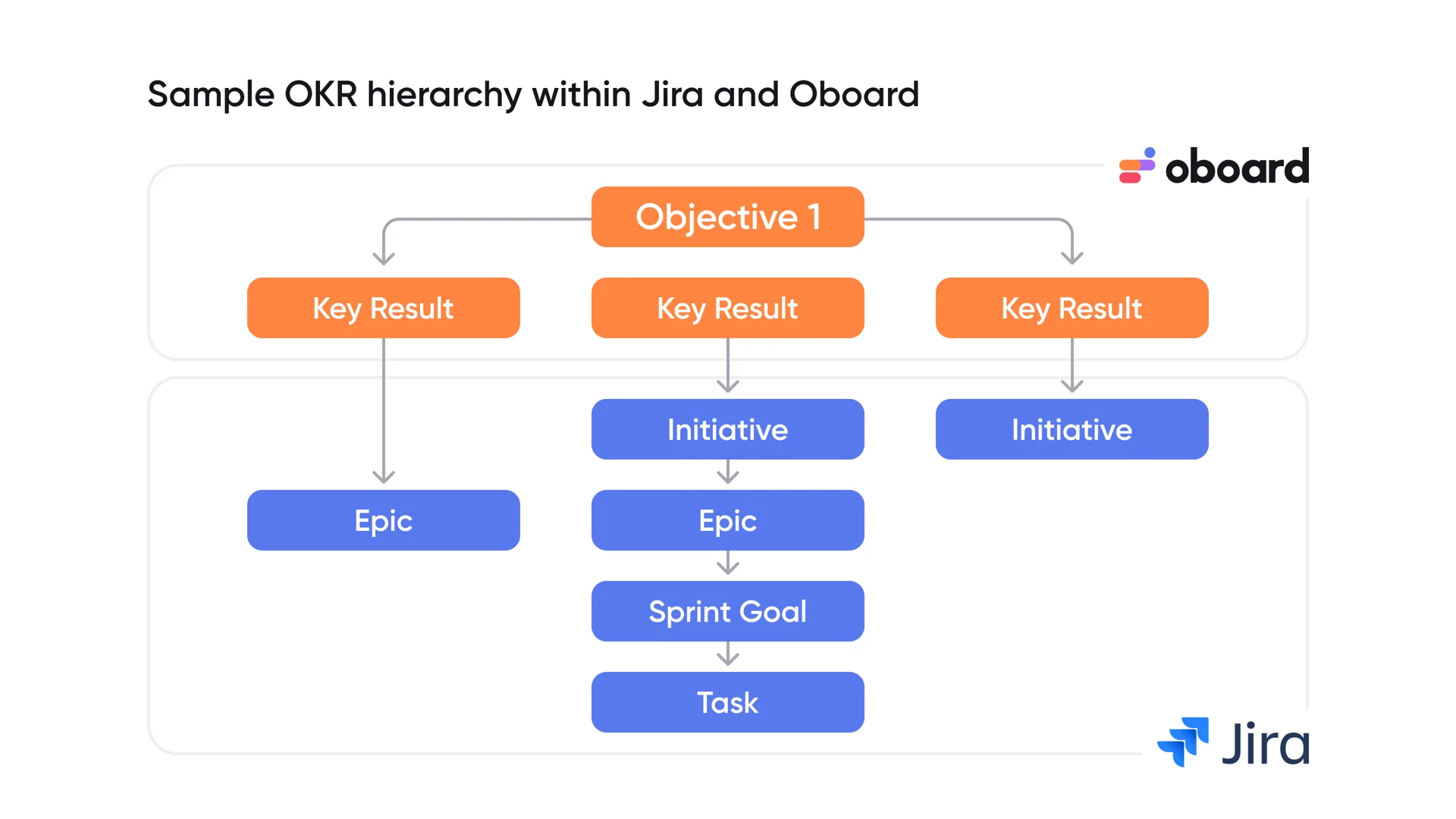
An OKR board adds a strategic layer to Jira, allowing you to connect Initiatives, Epics, and Issues directly to your OKRs. This way, team members are always aware of what they are doing, and we can also do OKR tracking in Jira by monitoring the Issue completion status.
- Connect strategic goals to Jira work items
- Track outcomes Jira completion cannot measure
- Cascade your strategy in a flexible way
- Give every stakeholder a personalized view.
How to Implement OKRs and Manage Them in Jira
This guide will walk you through, step by step, the best way to set up OKRs using our OKR in Jira by Oboard. To install the app, please go to the Atlassian Marketplace.
You can now start your implementation in two ways. Oboard AI can guide the initial setup and generate a ready-to-use OKR workspace based on your organization and strategic priorities, or you can configure your workspace and goals manually. Whichever route you choose, the following steps explain how to implement OKRs in Jira using Oboard and build a process that connects your strategy, Jira work, progress tracking, check-ins, and reporting.
Setting Up Your Jira OKRs With Oboard AI
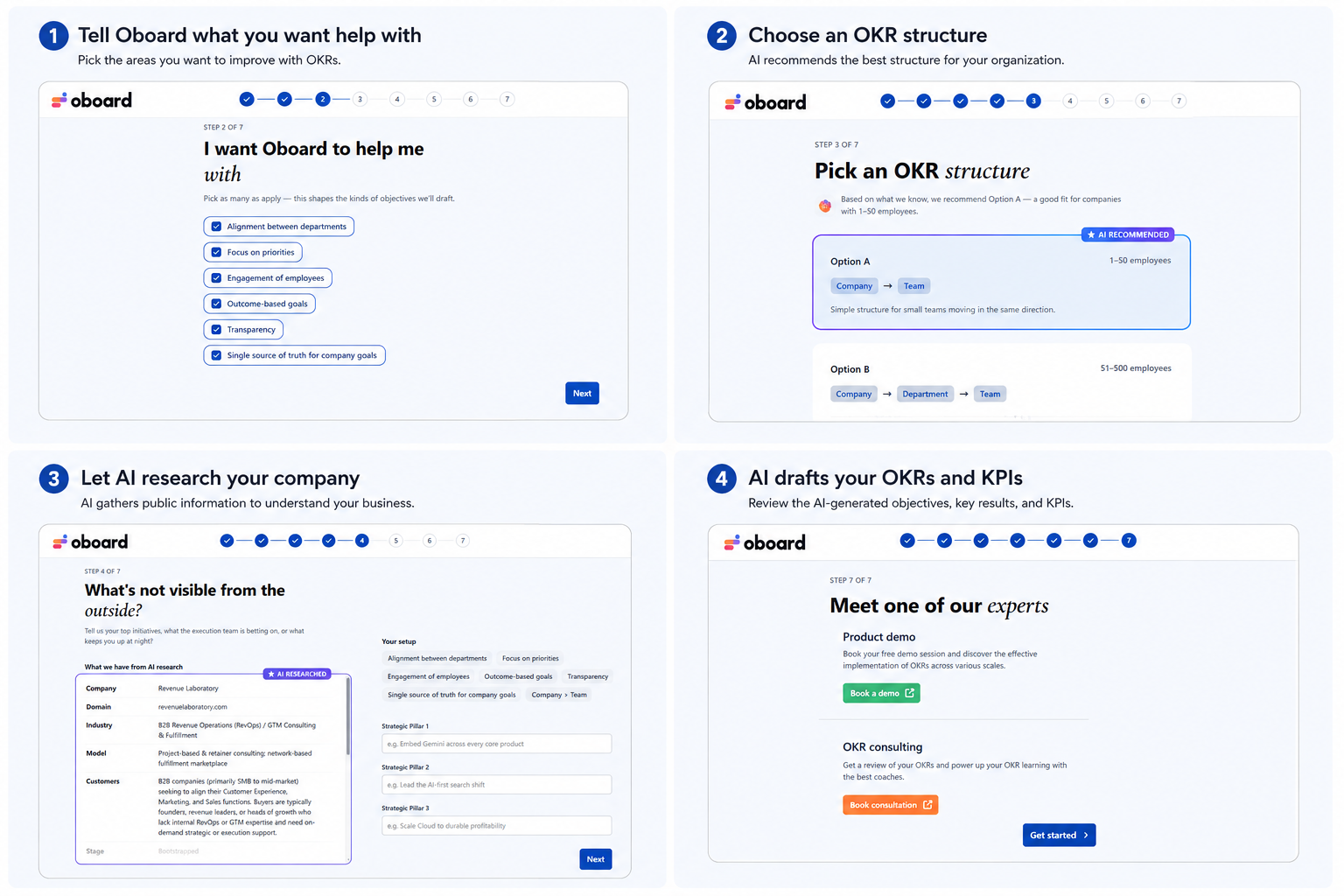
You don’t have to start your Jira OKRs with an empty workspace. Oboard AI can guide you through the initial setup, using information about your organization and priorities to recommend an OKR structure and build an initial OKR board with Objectives, Key Results, and KPIs.
- First, tell Oboard what you want your OKR process to help with, such as improving alignment between departments, focusing teams on priorities, creating more outcome-based goals, or establishing a single source of truth for company goals.
- Oboard then recommends an OKR structure based on your organization. Depending on your company size and needs, this could be a simple Company → Team structure or include additional Department and Personal layers. You can also select the OKR interval you want to start with before moving on to your strategy.
Give AI Context About Your Business
Instead of asking you to explain your entire organization from scratch, Oboard AI can research publicly available information about your company, including its industry, business model, customers, and stage. You can review this information and add what AI cannot know from the outside, such as your current strategic priorities, internal initiatives, or the challenges your teams are trying to solve.
Oboard uses this context to build your initial workspace, draft Objectives, calibrate Key Results, define measurable outcomes, and select relevant KPIs. After the setup is generated, you can review and refine the results rather than building your entire Jira OKR board and goals from scratch.
Once Oboard AI finishes building your workspace, you are not locked into what it creates. Review the suggested Objectives, Key Results, KPIs, and structure, and edit anything that does not quite align with your strategy. From there, you can fine-tune how progress is calculated, adjust weights, assign ownership, and customize your setup before you begin tracking execution.
Prefer to set things up manually? You can configure your workspace, Strategy Components, goals, metrics, and organizational structure yourself. The next steps explain each part of that setup and are also useful for understanding and refining an AI-generated workspace.
Step 1. Define your Strategy Components
If you’re setting up your Jira OKR structure manually, one of the first decisions is choosing the strategy components your organization will use. In Oboard, these components define the different levels and types of goals and metrics you can create, helping you build an OKR hierarchy that reflects how your company operates. You can use the default setup, or edit it and create new ones.
During setup, Oboard lets you select from five strategy components:
- Company Objective: High-level objectives that represent the organization’s broader strategic priorities.
- Department Objective: Objectives owned by specific business functions, such as Marketing, Sales, Product, or HR.
- Team Objective: More focused objectives that connect individual teams and their work to higher-level priorities.
- Key Result: Measurable outcomes used to determine whether an objective has been achieved.
- KPI: Metrics used to monitor ongoing business performance alongside your OKRs.
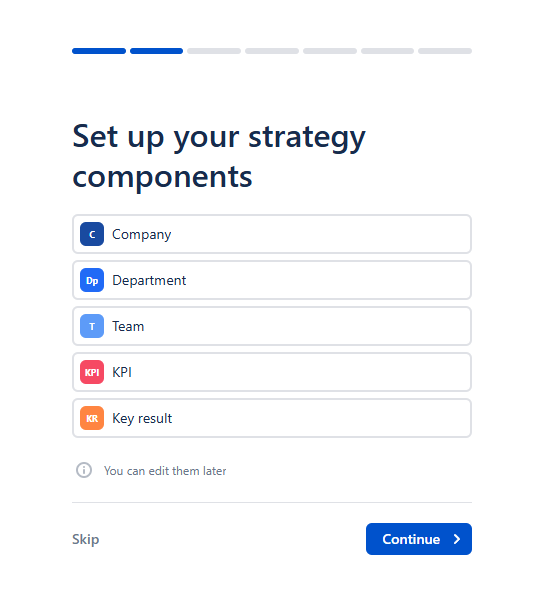
You don’t necessarily need every component. A smaller organization, for example, may only need Company and Team objectives with Key Results, while a larger company may use Company, Department, and Team levels to manage OKRs in Jira across a more complex organizational structure.
The important part is choosing a structure that makes alignment clear. Higher-level company goals can provide direction, while departmental and team objectives show how different parts of the organization contribute to those goals. Key Results and KPIs then provide the measurable layer needed to track whether that strategy is producing the expected outcomes.
These choices also aren’t permanent. Oboard lets you edit your strategy components later, so your OKR for Jira setup can evolve as your organization, goal-setting process, or reporting requirements change.
💡 Note: Strategy Components are the building blocks Oboard uses to structure your strategy. They define the different types of goals and measures you can work with — such as Company, Department, and Team Objectives, as well as Key Results and KPIs — and help show how each part of your strategy connects to execution. We’ll revisit them when we start creating Objectives, Key Results, and KPIs.
Step 2. Organize Users into Workspaces
Once you’ve defined your strategy components, the next step is to create the workspace for managing your Jira OKRs. In Oboard, workspaces and groups — more on groups later — give you a dedicated environment to organize your OKR board and goals for a specific part of the business while keeping them within the same overall OKR system.
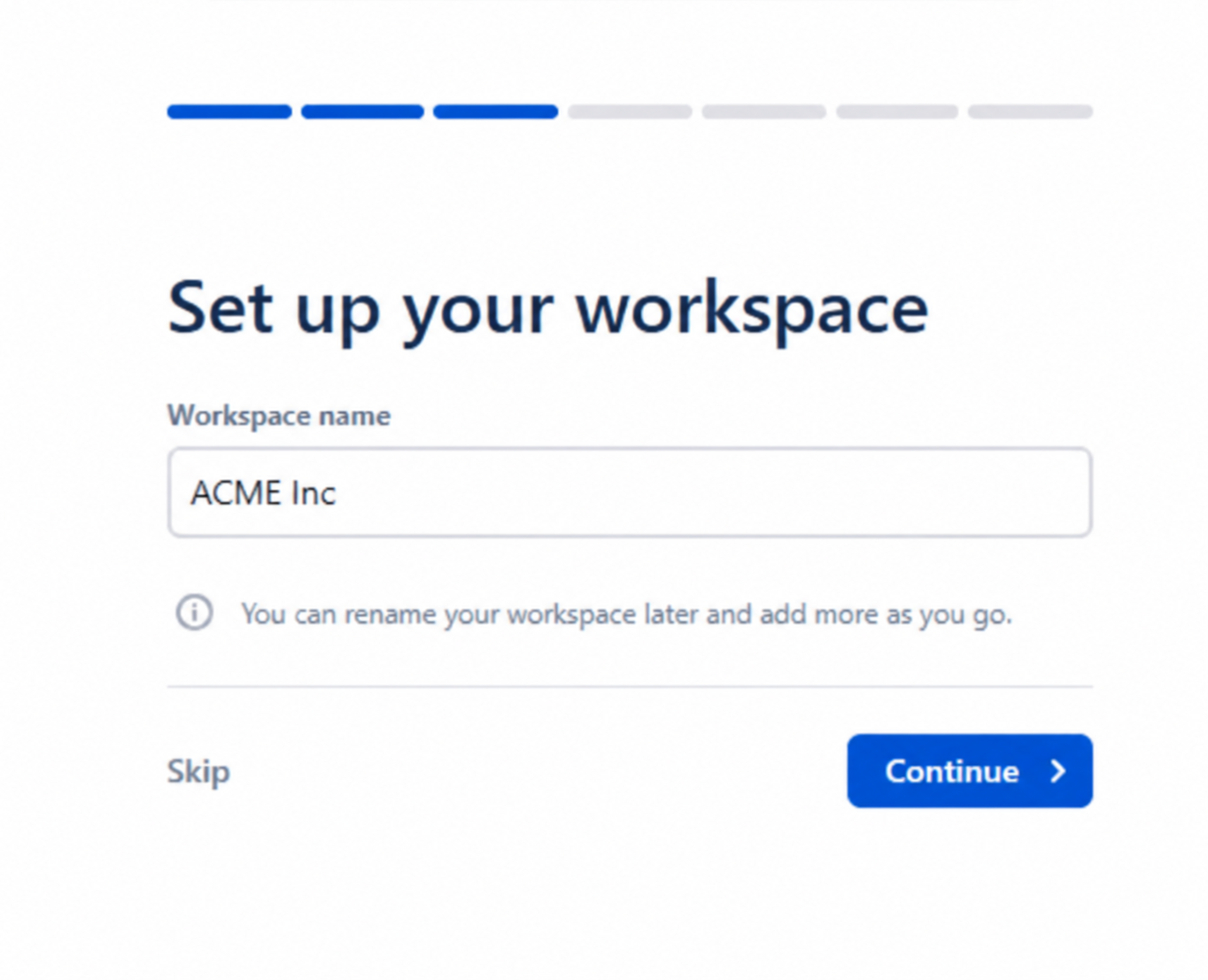
During the initial setup, you simply give your workspace a name. This could represent your company, a business unit, department, or another area where you want to manage OKRs in Jira. You can rename the workspace later and create additional workspaces as your OKR process expands.
Workspaces become particularly useful when different parts of an organization need different goal structures. For example, a company-level workspace may need Company, Department, Team, KPI, and Key Result components. While another workspace could be configured around a much narrower set of strategy components.
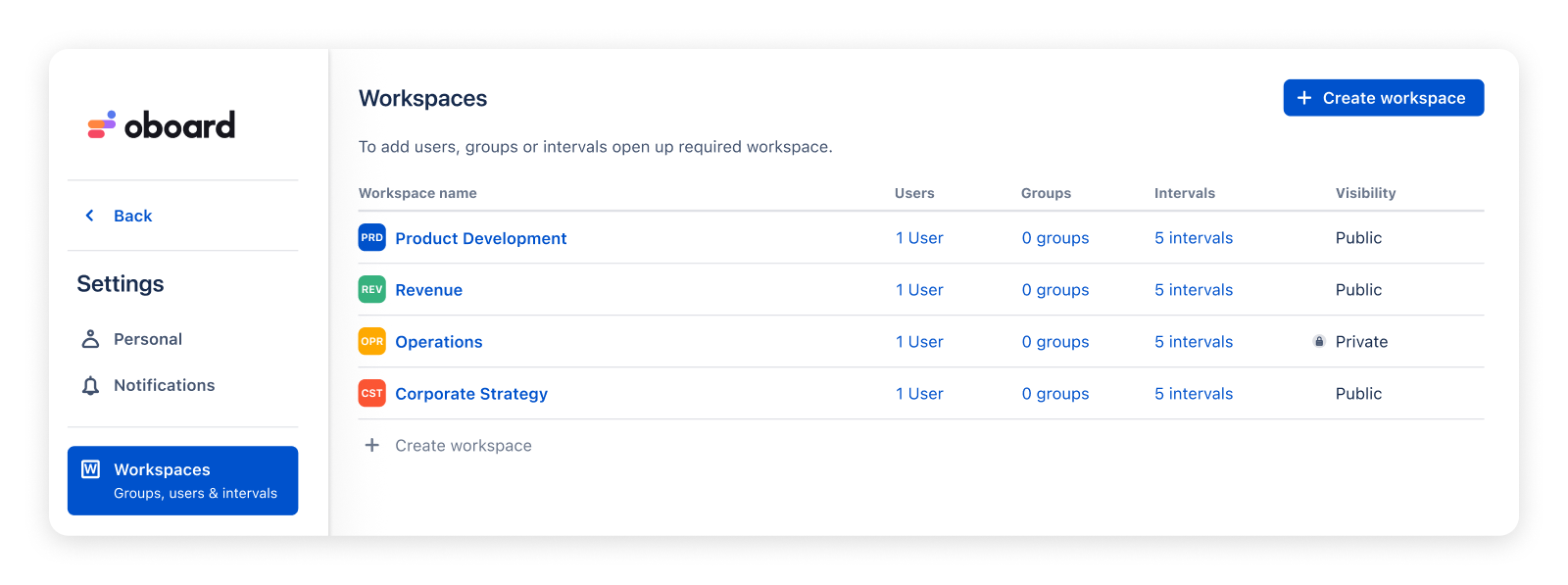
This gives you more flexibility than forcing every team into exactly the same OKR hierarchy. Each workspace can reflect the level of strategy being managed there, while Oboard provides a central place to manage and track the broader Jira OKR process.
💡For larger organizations, Workspaces provide an additional level of organization by separating strategic areas, business units, or planning environments. Depending on your organizational setup, Workspaces can also help control access to strategic information while keeping each team’s planning space focused and uncluttered.
Step 3. Set Up Your OKR Intervals and Cadence
Next, decide the time periods your OKRs in Jira will follow. In Oboard, intervals define the periods over which objectives and key results are planned, tracked, and reviewed.
During setup, Oboard provides suggested intervals that you can use immediately or adjust to match your existing OKR cadence. For example, you might set up Q3 2026, Q4 2026, Q1 2027, and Q2 2027 if your organization works with quarterly OKRs. You can also add more intervals or edit them later as your planning cycle changes.
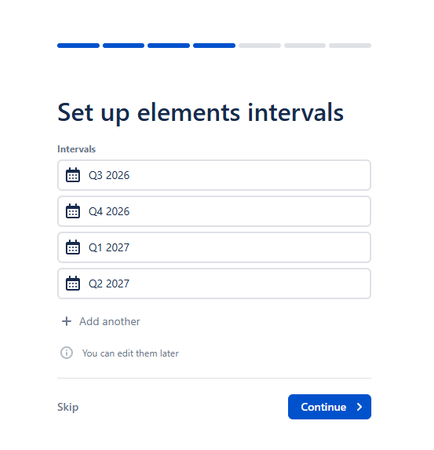
This is especially useful when your organization operates across multiple planning horizons. Company objectives may span an entire year, while department or team OKRs operate on a quarterly basis. Having the relevant intervals available allows you to organize these different cycles in the same Jira OKR management system without treating every goal as though it follows the same timeline.
At this stage, you are essentially creating the time structure within which your objectives will sit. Once your OKRs are created, intervals also make it easier to filter your OKR board by planning period and see which objectives are currently active.
Step 4. Organize Your Teams in Groups and Assign OKR Ownership
Once your workspace and intervals are set, the next step is to organize the people responsible for your Jira OKRs. Oboard uses Groups to reflect your company structure. This allows you to create departments, teams, or other organizational units and connect goals to the people responsible for them.
💡OKR in Jira by Oboard allows you to sync with your Jira groups, keeping your workspace data aligned with your strategy.
Groups can also have sub-groups. For example, you might create Marketing, Product, Engineering, Sales, HR, and Customer Success as your main groups. Then add Recruitment as a sub-group under HR. This makes it possible to reflect your actual organizational structure rather than treating every team as being on the same level.
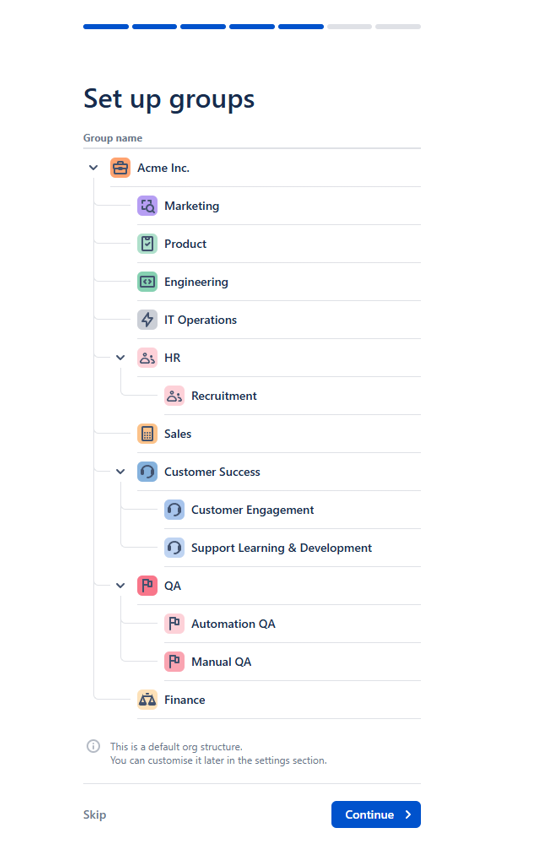
With your Groups in place, you can assign Objectives and Metrics to their relevant owners and teams, including multiple Groups where a goal requires cross-functional collaboration. Groups can also be used as filters in Oboard’s reporting tools, making Jira OKR tracking easier when you want to focus on a particular team’s or department’s goals and progress.
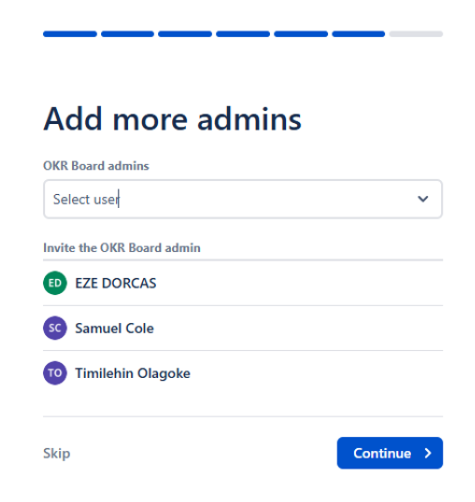
During the initial setup, you can also invite additional OKR Board admins who will help manage the organization’s OKR process. You can skip this during onboarding and add or change administrators later.
Step 5. Create Objectives, Key Results, and KPIs
OKRs are a goal-setting and strategy-execution framework that help organizations define strategic objectives and measure the outcomes required to achieve them.
💡Note: Taking a deep dive into the OKR framework is beyond the scope of this article. If you’re new to OKRs, we recommend starting with OKRs: How John Doerr’s Formula Makes Companies Grow, followed by the OKR Alignment Guide. Alternatively, you can watch our 16-minute introduction on YouTube.
With your Jira OKR board and overall structure in place, you can start creating the goals your teams will work toward. In its simplest form, an OKR consists of two parts:
- An Objective is a clear, qualitative goal aligned with the organization’s strategic priorities.
- A Key Result is a specific, measurable outcome used to determine whether the Objective has been achieved.
By creating a shared definition of success, OKRs in Jira help teams stay focused while making progress visible across the organization.
Here is a simple example:
Objective: Increase market share in Q4.
Key Results:
- [KR] Achieve $2 million in new customer sales.
- [KR] Onboard 10 new enterprise clients.
- [KR] Increase customer retention to 95%.
💡Note: With OKRs in Jira by Oboard, you can speed up your OKR implementation process in Jira by using AI to build ready-to-ship and business-relevant OKRs.
Use the Strategy Components you selected in Step 1
Let’s revisit Strategy Components again.
While traditional OKRs remain the foundation, OKRs in Jira give teams more flexibility in how they represent strategy with Strategy Components.
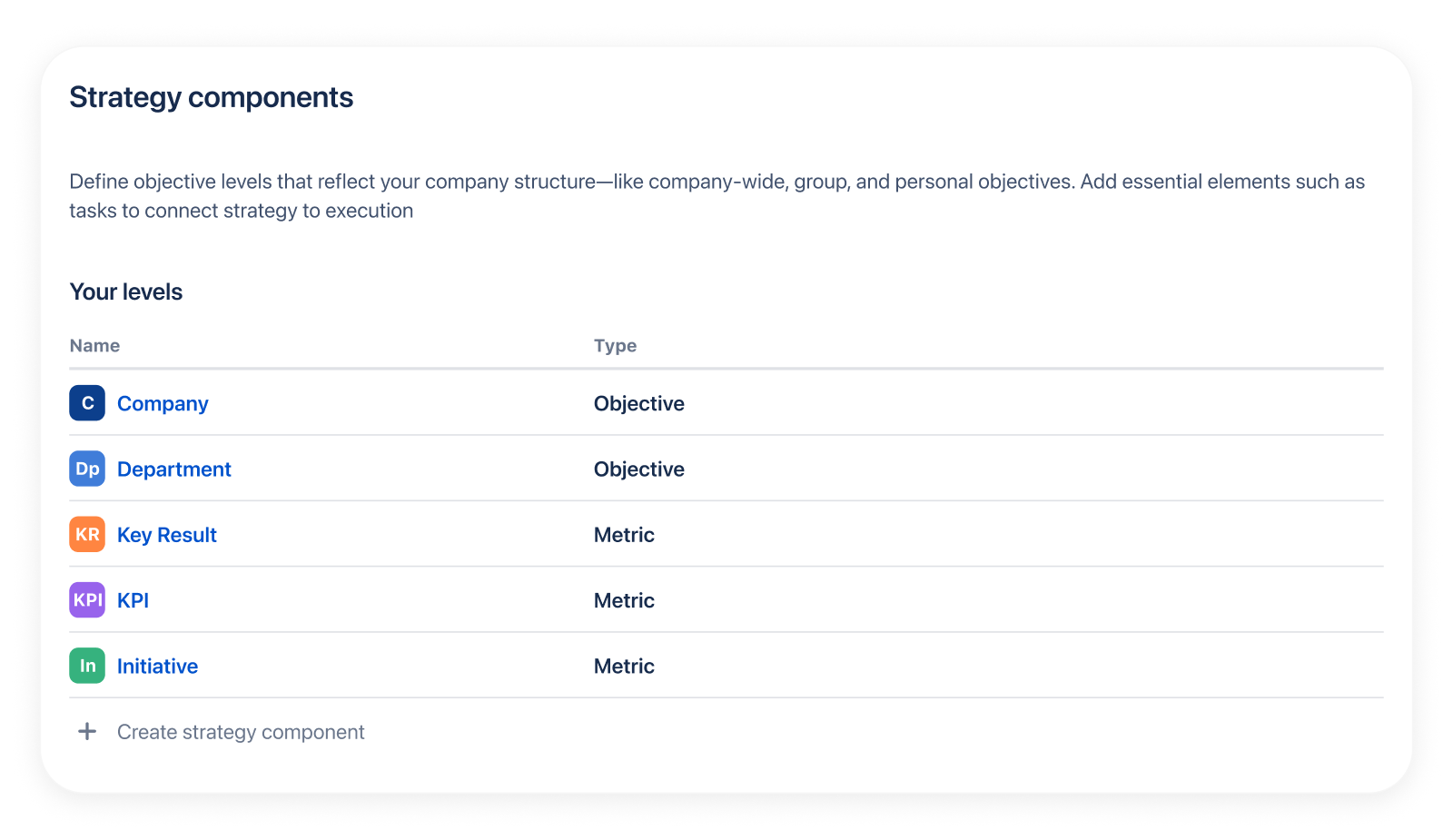
Objectives continue to define the outcomes the organization wants to achieve, while Metrics can serve as traditional Key Results, ongoing KPIs, or other measurable indicators of success. Initiatives and Jira work items can then be connected to the Objectives or Metrics they support, creating a more complete picture of strategy execution.
A simple way to think about the structure is:
- Objective — the meaningful business outcome you want to achieve.
- Key Result or Success Metric — how you’ll measure whether that Objective succeeds.
- KPI — an ongoing measure of business performance that may support multiple objectives.
- Initiative or Jira work item — the work intended to influence those outcomes.
This structure gives teams the flexibility to manage Jira OKRs while also tracking operational performance without forcing every metric into a traditional Key Result.
💡Note: For best practices on writing effective OKRs, see 12 OKR Best Practices on Setting and Achieving Business Goals. If you’re looking for more industry-specific examples, explore this Company OKR Examples article.
As we noted earlier, a business will not always require all the elements within the strategy components. Choose only what is relevant to your organization at a time.
Step 6. Choose How to Track OKRs in Jira
Learning how to track OKRs in Jira begins with choosing the progress method that best reflects what success might look like for your business. While some goals can be measured automatically through completed Jira work, others require business metrics or milestones. Choosing the right tracking method ensures your progress reflects real outcomes and not completed tasks.
Start and Target Metrics
Use the “Start” and “Target” metrics when success means moving from one measurable value to another over time. This works well for goals such as increasing revenue, improving customer retention, or reducing response times.
For example:
- Increase product adoption from 42% to 55%
- Reduce average response time from 12 hours to 6 hours
- Grow annual recurring revenue from $1.5M to $2M
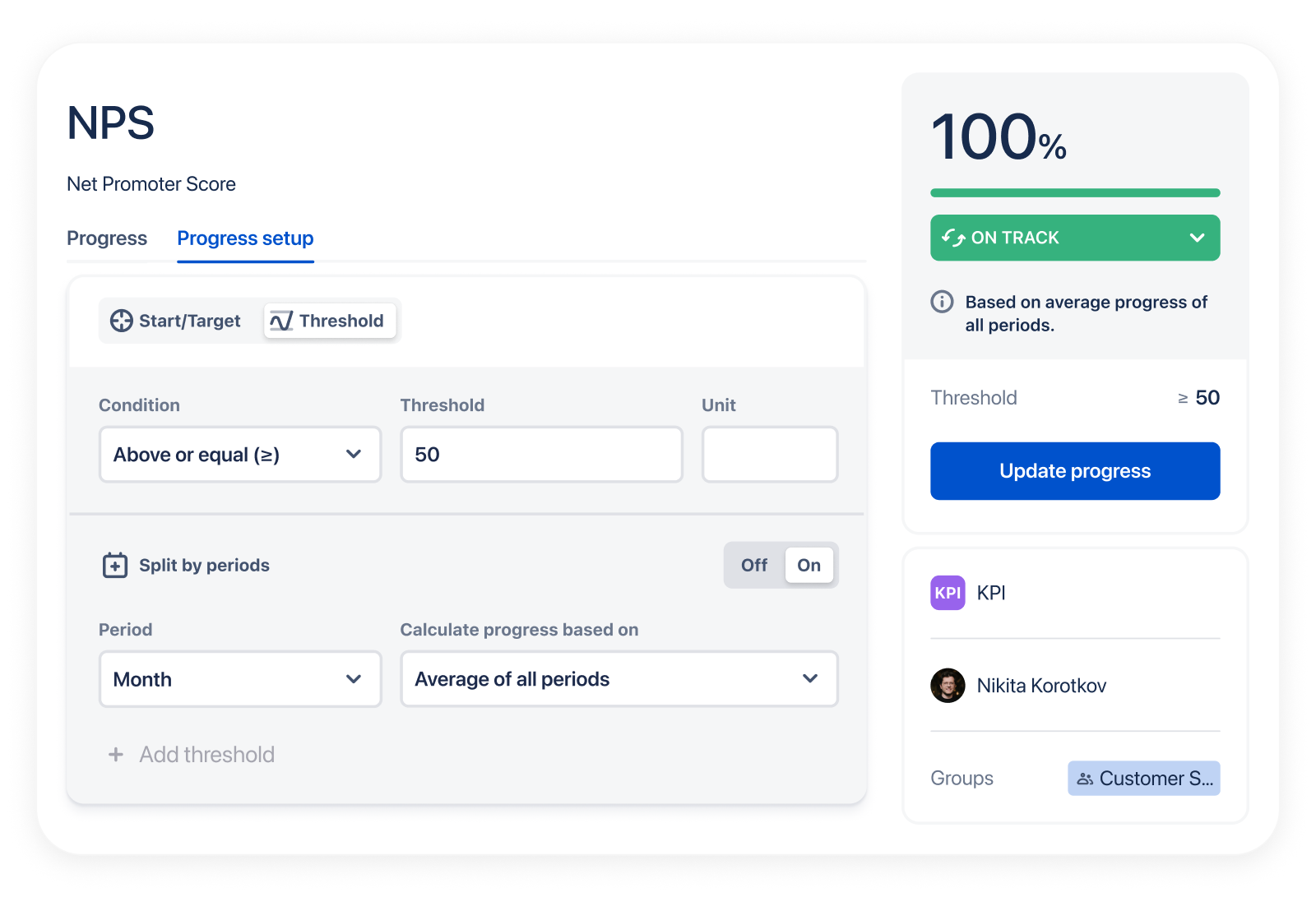
Threshold Metrics
Some metrics are considered successful when they stay above or below a specific value rather than moving toward a fixed target. Threshold-based custom metrics are ideal for ongoing operational KPIs.
For example:
- Net Promoter Score: 50
- Keep customer churn below 3%
- Keep critical production defects below 10
Milestones
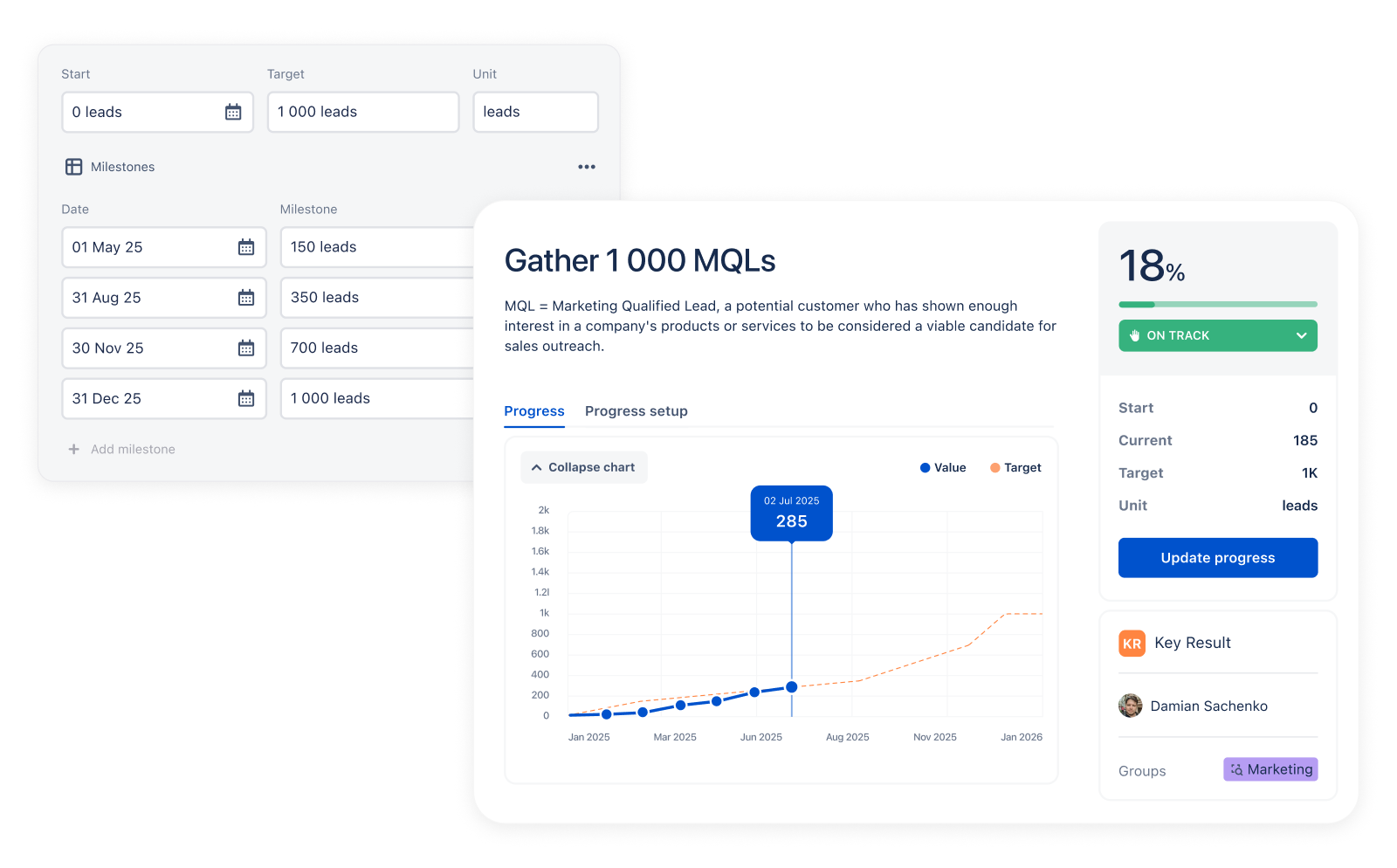
Some objectives are achieved in stages rather than with a single final measurement. Milestones let you break progress into meaningful checkpoints with their own target values and dates, making OKR progress tracking more realistic for longer-term initiatives.
For example:
- Complete a phased product rollout across multiple regions
- Reach quarterly revenue targets within an annual Objective
- Deliver a multi-stage migration project
Task-Driven Progress
When completing work is itself a meaningful indicator of progress, you can connect relevant Jira work items directly to your Objectives or Metrics. As Issues or Epics move along, Jira OKR tracking updates automatically, reducing manual reporting while keeping strategic goals connected to day-to-day execution. More on this in the next step.
This approach works particularly well for implementation projects, migrations, compliance initiatives, or other goals where completing planned work is the primary measure of success. Alternatively, you can treat those tasks as active, output-based Key Results, since they usually require significant time and cross-departmental effort to complete.
Manual, Historical, and API Updates
Not every business metric lives inside Jira. OKR in Jira by Oboard also allows teams to manually update values, record progress against previous dates, review progress history, or automate updates via supported APIs.
This flexibility allows teams to track OKRs in Jira using the measurement method that best represents each Objective, whether the data comes from Jira itself or another business system.
💡Best Practice: Don’t choose a progress method simply because it’s the most automated. Choose the one that most accurately reflects whether your Objective is succeeding. In many cases, the best approach combines Jira work tracking with business outcome metrics for a more complete view of progress.
Step 7. Connect Jira Work to Your OKRs
One of the main benefits of managing an OKR in Jira is the ability to connect strategic goals directly to the delivery work that supports them. Linking Jira work items to your Objectives and Metrics helps teams understand how their day-to-day work contributes to broader business priorities.
Link Jira Work Items to Goals
With OKR in Jira by Oboard, you can link relevant Issues, Epics, or other Jira work items to the Objectives and Metrics they support. This keeps OKRs in Jira connected to execution while giving teams clear visibility into the work driving each goal.
Automate Progress Updates
As linked Jira work moves through its workflow, Jira OKR tracking updates progress automatically. This reduces manual reporting and makes OKR progress tracking more accurate by reflecting the latest delivery status.
Separate Outputs from Outcomes
Completing every Jira task does not always mean an Objective has been achieved. Delivering a feature is an output, while improving customer adoption, revenue, or retention is the outcome. The strongest OKRs combine Jira execution with business metrics so teams can measure both what was delivered and the impact it created.
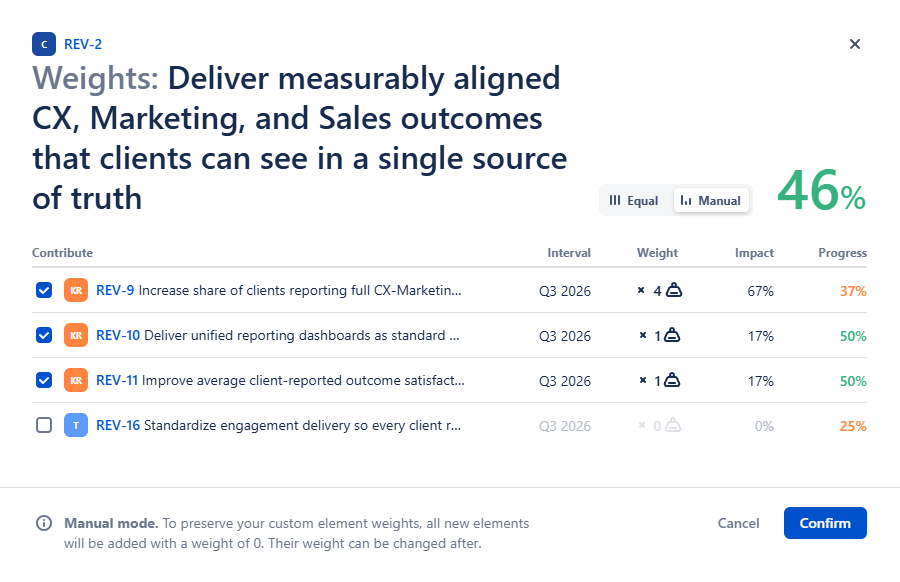
Weight Contributions Where Needed
Not every work item contributes equally to a goal. You can assign weights to linked work so that higher-impact initiatives have a greater influence on overall progress, creating a more accurate picture of strategic execution.
Maintain Cross-Project Visibility
Many Jira OKRs rely on work spread across multiple teams and projects. By linking work from different Jira projects to the same Objective or Metric, teams gain cross-project visibility without losing sight of the overall strategic goal.
Step 8. Set Up an Executive and Team OKR Boards
OKR in Jira by Oboard has multiple ways to display OKRs — your Home page, OKR Roadmap, OKR Structure Map, etc. They are invaluable when you want to get a bird’s-eye view of the project or your total responsibilities, but what if you want to focus on a select few instead?
Custom OKR Dashboards were designed to solve this issue. They allow you to select up to 10 Objectives and monitor them on a dedicated Dashboard that you can share with others. They can also be exported as a PDF in a single click and added to your executive report.
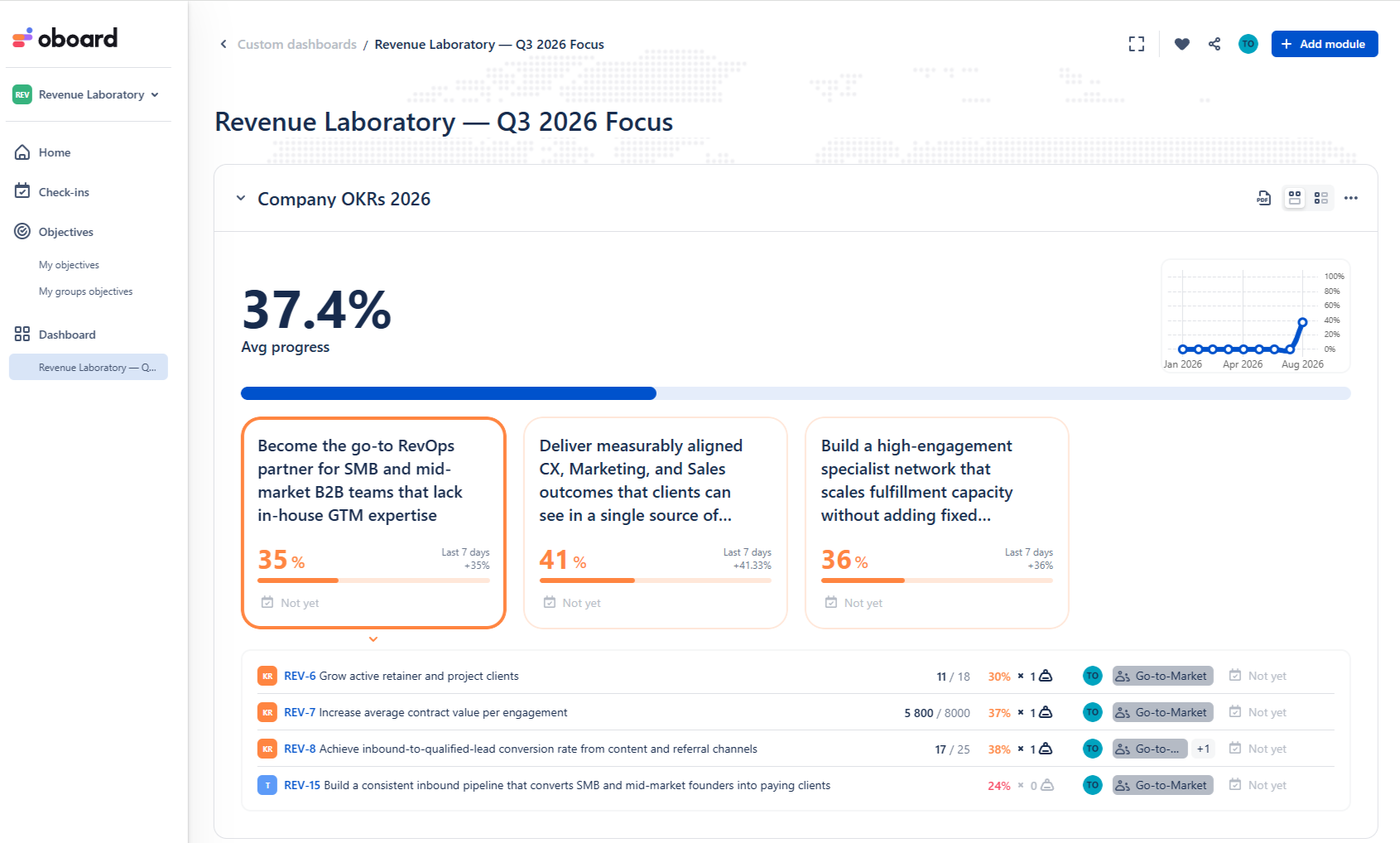
You can have multiple OKR boards for different reports — an Executive report dashboard, a Team dashboard that showcases the OKRs you are focusing on this Sprint, etc.
💡Pro Tip: If you’re new to customizing dashboards, this guide to Jira dashboards breaks down everything from basic OKR board setup to advanced views — a great way to supercharge your Jira OKR implementation. You can also check out our feature article on Custom OKR Dashboards.
Step 9. Establish Recurring OKR Check-Ins and Monitor Progress
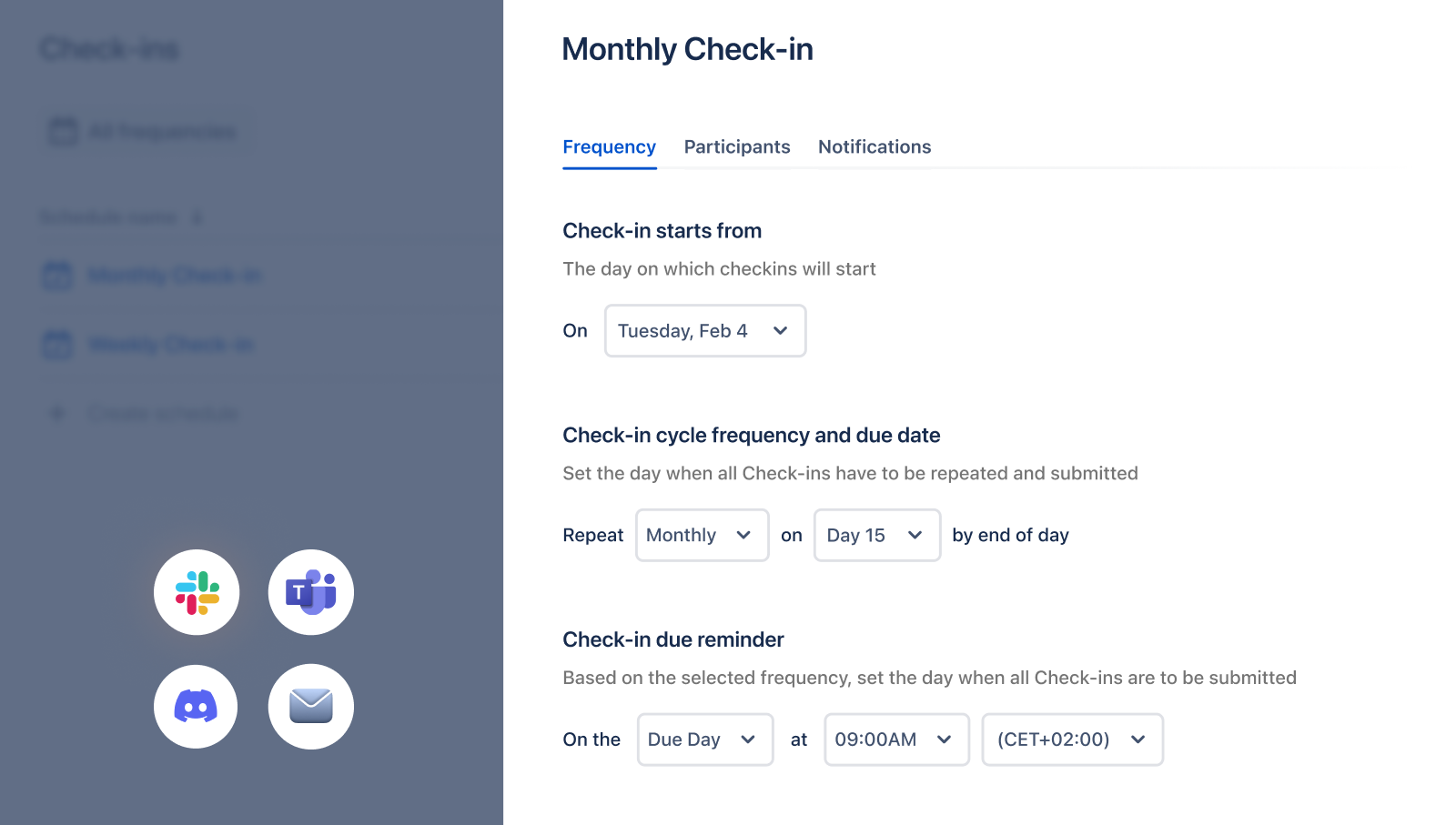
To track OKRs in Jira effectively, teams need a consistent process for updating both progress and context. Regular OKR check-ins keep goals and your OKR board up to date, improve accountability, and reduce the need for manual status updates.
- Choose a Check-In Schedule: Decide how often your team should review progress based on the pace of your Objectives. Most organizations find that weekly or biweekly check-ins provide enough visibility to identify risks early without creating unnecessary overhead.
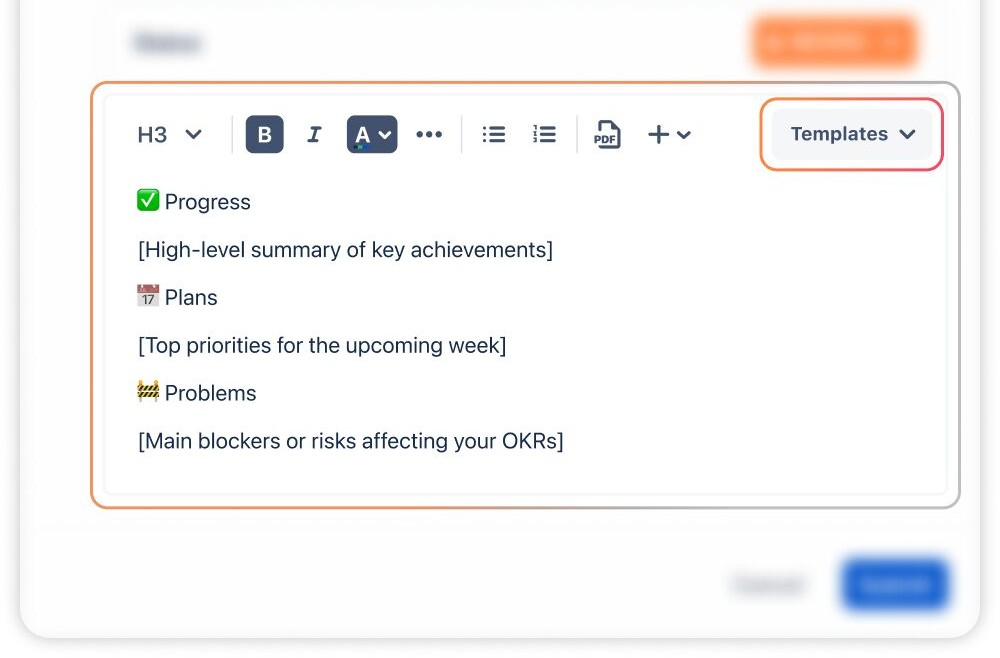
- Standardize Updates with Check-In Templates: OKR in Jira by Oboard includes pre-built check-in templates for different teams and use cases, making it easy to capture consistent updates across the organization. Teams can use these templates as they are or customize them to collect the information most relevant to their goals.
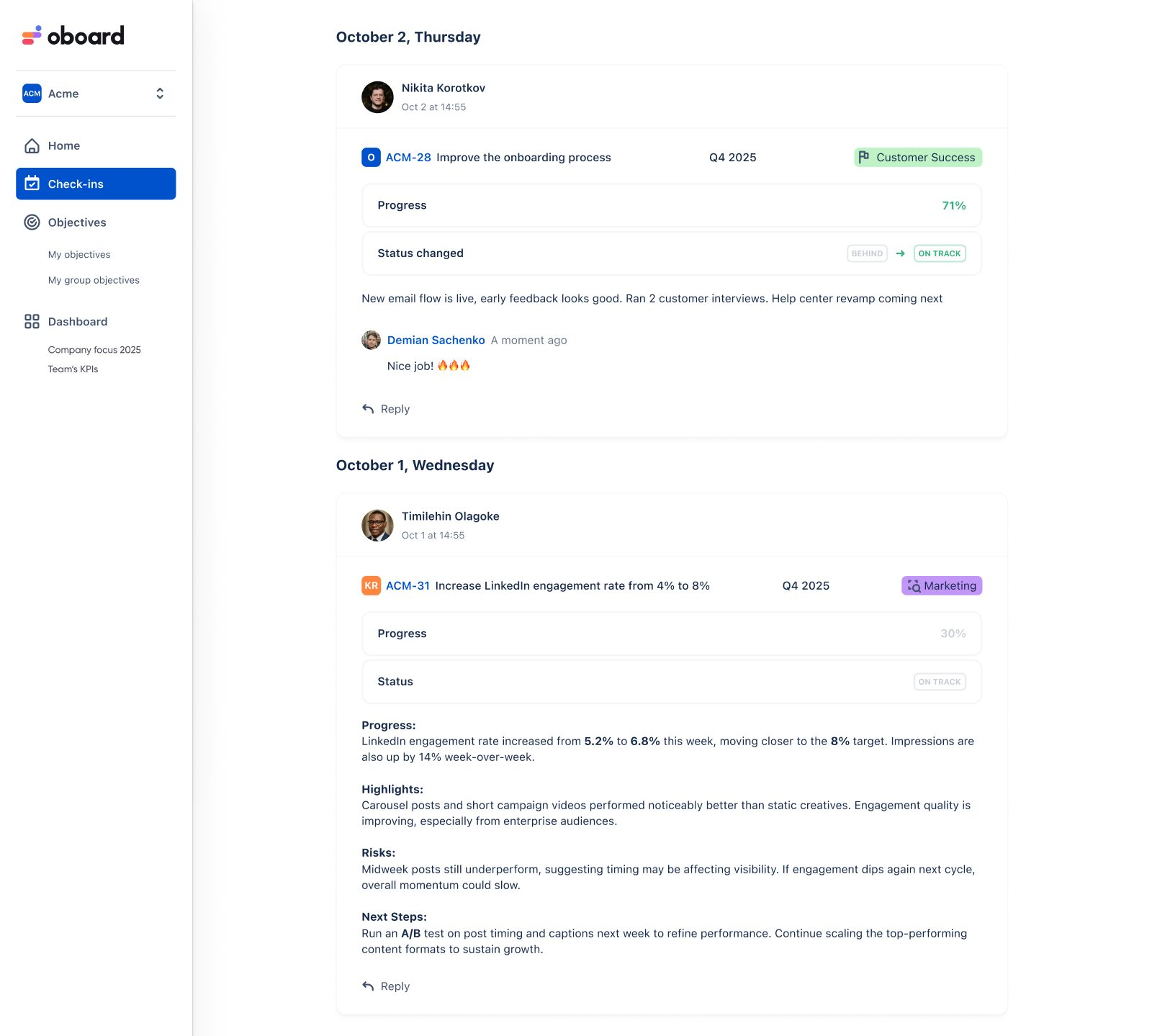
- Review Check-In History and Activity: Every update is stored in a running history, and the centralized Check-In Feed gives teams and leaders a quick view of recent progress, blockers, and activity across the organization. Together, they make Jira OKR tracking more transparent and provide valuable context for reviews and retrospectives.
Step 10. Embed OKR Reports into Confluence
A Confluence OKR report gives people who don’t work in Jira every day a clear view of current Objectives, KPIs, and progress. By embedding live OKR reports in Confluence, teams can keep stakeholders informed without creating separate reports or manually copying updates.
Embedded reports can be added to strategy pages, meeting notes, quarterly business reviews, and planning documentation, ensuring everyone is working from the same up-to-date information. This makes it easy to share Jira and Confluence OKRs with executives and other stakeholders while keeping OKRs in Jira by Oboard as the system where goals are managed, and Confluence as the place where they are communicated.
💡Tip: Because embedded reports update automatically, there’s no need to recreate dashboards or copy progress into presentation decks every reporting cycle.
OKR Board for Confluence is a free add-on to OKR in Jira by Oboard that allows you to create Confluence OKR dashboards that will update in real time. Using different Confluence OKR templates, you can tweak the display to present the data you need — and if one report is not enough, you can create an unlimited number of them.
Check out our feature article on the OKR Board for Confluence to learn more.
AI-Powered Strategy Execution with MCP
Artificial intelligence is rapidly changing how teams plan and execute strategy. Rather than spending hours gathering updates, preparing reports, or manually maintaining goals, organizations are increasingly using AI to automate routine tasks and surface strategic insights faster.
💡Jira itself has a native AI assistant called Rovo. It acts as a ready assistant that can access all your Jira workspace data, including work items, to help manage how work is done.
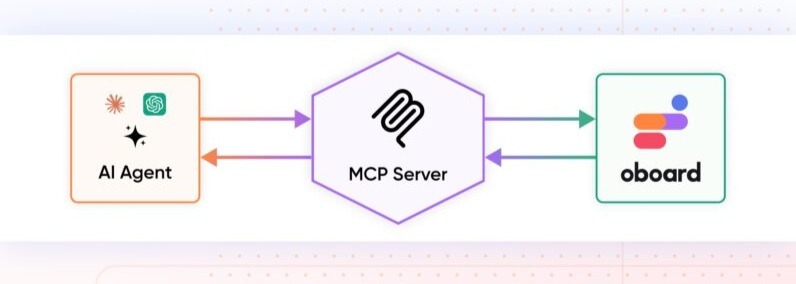
OKR in Jira by Oboard brings the power of AI to your Jira workspace through its Model Context Protocol (MCP) integration. By connecting ChatGPT, Claude, Gemini, or any other MCP-compatible AI assistant to your workspace, you can securely work with live OKR data instead of manually copying information between systems. Even better, MCP with write permissions allows the AI assistants to take action within approved sections of your workspace, like creating OKR elements, writing and submitting check-ins, etc.
Conclusion
Knowing how to implement OKRs is only the beginning. A successful Jira OKR process depends on more than just creating Objectives and Key Results; it requires meaningful success metrics, the right progress-tracking methods, connected Jira work, recurring check-ins, and clear reporting that keeps everyone aligned.

OKR in Jira by Oboard brings all of these elements together in a single workspace and centralized OKR board, helping teams manage OKRs in Jira without separating strategy from day-to-day execution. Whether you’re rolling out OKRs for the first time or improving an existing process, it provides everything you need to connect goals, measure outcomes, and keep your organization moving in the same direction.
Ready to get started?
Book a personalized demo to see how the OKR Board for Jira can be configured to align with your organization’s strategy, reporting, and daily operational requirements. Or, if you’d rather explore it yourself, start a free trial and begin building your first OKR workspace today.